About Pixlr E/Photoshop
- Chloe Pritchard

- Apr 20, 2021
- 1 min read
Updated: May 24, 2021
Pixlr E link: https://pixlr.com/e/
Photoshop link: https://www.photoshop.com/en

Pixlr E and Photoshop have the same advanced levels, but they are somehow laid out differently. Although they have the same features/tools and they work just like it, between the both software's, they don't have that much options as the other one does, or maybe one of them is a free version to Photoshop. They are both graphic, digital art software's for artists/editors to produce their work with the creativity they have. Here are some screenshots I took from each of them.
{Pixlr E}:

So in this image, I was on the main menu of the software, so you can either go back to your previous work or change the canvas style to any category. As you can tell at the very bottom, it gives you any template for any platform you wish to share your work on (Instagram, Facebook, Twitter, YouTube) or you can use it on any game that lets you create clothing/thumbnails etc.

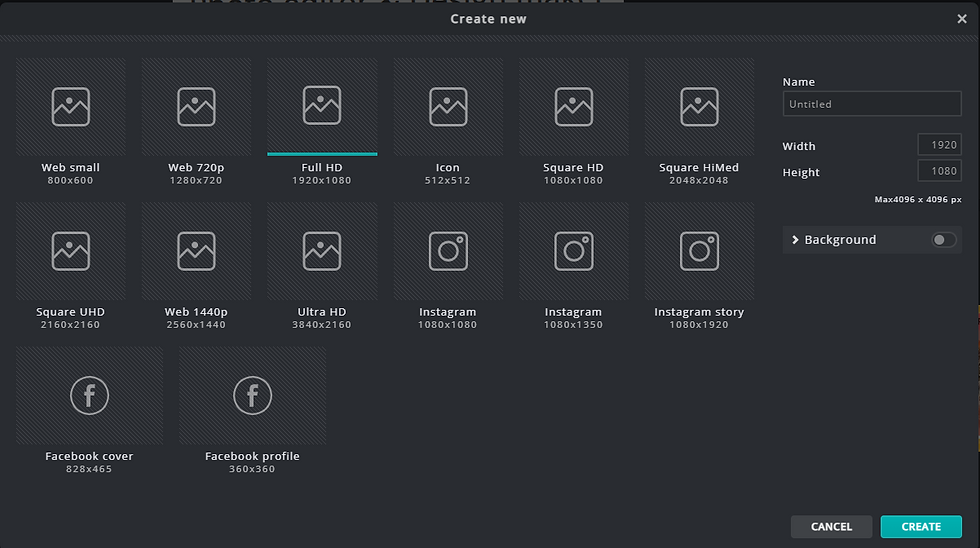
You have more example templates for each canvas category as well. I love how there is so many varieties to choose from. You won't have to worry about the sizes of the image as a result either, which I find fascinating.

This is the drawing I did, and I tried being more advanced by using Pixlr E brushes for it. I practiced using the filter options to make my drawings more sophisticated and more anime themed.


Comments